 TgWitness
Documentation / 07
Export and verify
Share a signed record that someone else can check.
New to signatures and checkpoints? Change a sample record and see which checks detect it.
Keeping a copy away from the collector? Go to S3 setup, Object Lock or verified recovery.
Retain a trusted reference
Save the workspace’s public-key fingerprint outside the collector. During collection, keep signed checkpoints elsewhere or use an independent witness. These references let a recipient check the key and an earlier journal boundary.
Download the signed ZIP
Open Exports and create a signed evidence ZIP. It includes the workspace journal and a signed file manifest. Panel filters do not limit this full-journal export: review the material before sharing it.
Standalone HTML and CSV downloads are useful for reading and analysis. Keep the signed ZIP as the verifiable original; the separate HTML or CSV file has no standalone signature.
Verify with a trusted copy of TgWitness
In the installed project environment, replace the example fingerprint and file paths:
python -m tgwitness.verify evidence.zip --fingerprint TRUSTED_PUBLIC_KEY_SHA256 --checkpoint retained-checkpoint.jsonWhen both references pass, the result reports key_pinned: true and checkpoint_checked: true. Keep the verification result with the original archive. The retained checkpoint must be at or before the export’s boundary.
Understand the result
- Integrity: the recorded history and exported files match their signatures.
- Earlier observation: an external checkpoint lets you compare the export with a previously retained journal prefix.
- Delivery: a controlled send → edit → delete test checks specific events against the captured record.
A valid signature does not prove that every Telegram event arrived, that the source told the truth or that the collector’s clock was correct.
Set up the S3 off-site copy
In your running workspace, open Exports → Off-site copy. This optional feature works with AWS S3 and other S3-compatible services. It copies journal segments, preserved photos and files, checkpoints with their timestamp responses, and finished chat exports. Every object is encrypted on the collector with AES-256-GCM before upload.
The online demo shows the same controls with uploads disabled. Enter storage credentials only in your own running workspace.
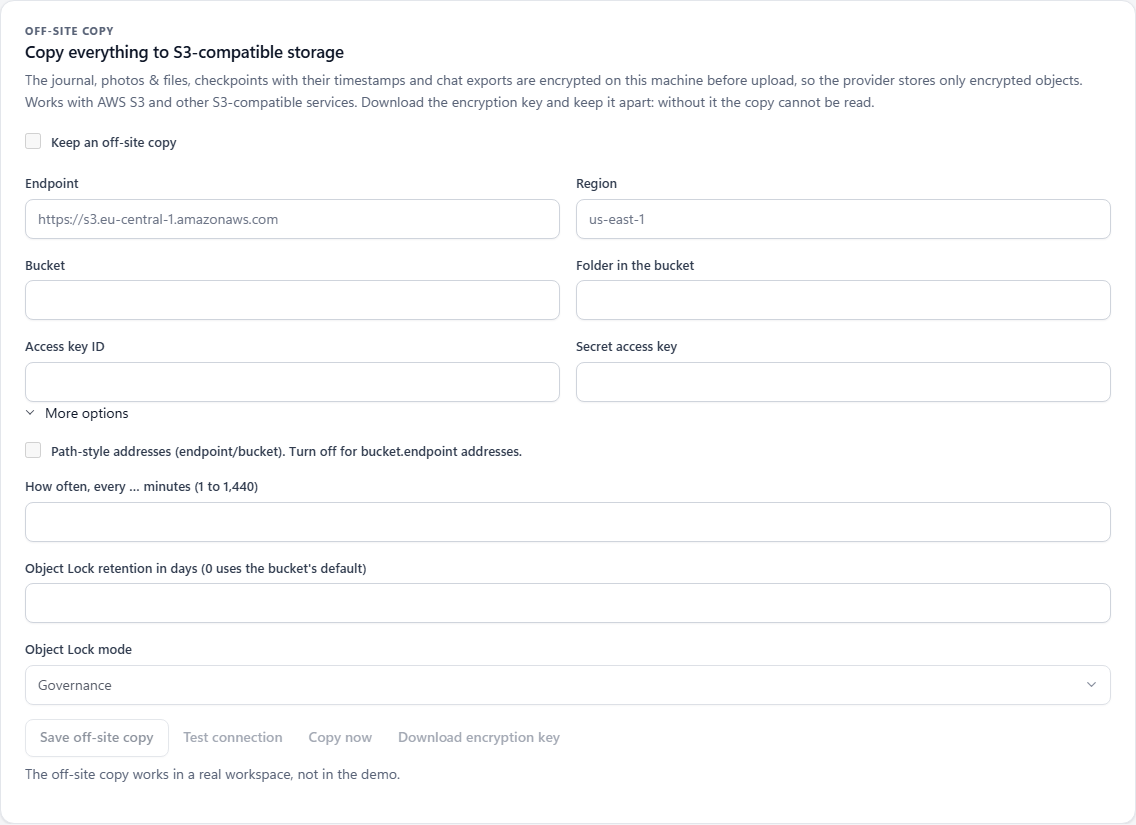
| Field | What to enter |
|---|---|
| Endpoint | The storage service URL, without a bucket path or credentials. Fictional example: https://s3.example.invalid. |
| Region | The region required by your provider. The application default is us-east-1. |
| Bucket | An existing bucket you can access. Fictional example: example-case-backup. |
| Folder in the bucket | The object prefix; default tgwitness. The application appends a prefix derived from this workspace’s signing-key fingerprint. |
| Access key ID / Secret access key | Enter both storage credentials together. They are saved in the workspace vault. Leave both empty on later saves to keep the saved pair. |
| Path-style addresses | Use endpoint/bucket when enabled, or bucket.endpoint when disabled, according to the provider. |
| Copy interval | From 1 to 1,440 minutes; default 5 minutes. The application must be running for scheduled copies. |
| Object Lock retention | Retention days and mode for a bucket that supports Object Lock. Zero days leaves the bucket’s default retention in effect. |
- Enter the destination and credentials. Leave Keep an off-site copy unchecked while preparing, then select Save off-site copy.
- Select Test connection. This uploads an encrypted test object and checks the storage response.
- Select Download encryption key. Keep that file separately from the collector; it is required for recovery.
- Enable the Keep an off-site copy checkbox and save again. Select Copy now for a manual pass, or leave the schedule running.
Does not do It does not create a storage bucket. Scheduled uploads stop when the application stops.
Check retention and copy progress
Under More options, choose retention days and GOVERNANCE or COMPLIANCE when your bucket supports Object Lock. TgWitness reads back the retention mode and deadline of an uploaded object. The status reports confirmation, missing retention or a check failure; a successful upload alone is not confirmation of retention.
The panel reports the last pass, object count, transferred bytes, the copied journal boundary and any error. Missing or changed local media is reported and retried on the next pass. Files, checkpoints and queued exports after that media can still be copied.
Uploads use the workspace’s Direct, SOCKS5 or HTTP route. S3 copying is unavailable over MTProxy; the application does not fall back to a direct connection.
Does not do It does not make a provider enforce Object Lock merely because the upload was accepted.
Keep the recovery key separately
The downloaded JSON contains the decryption key, destination settings, workspace object prefix and signing-key fingerprint. It does not contain the S3 access credentials: recovery needs separate credentials with read access to the bucket.
If you change the endpoint, bucket or folder prefix, download the key file again so its destination settings match. The application starts a new copy of the locally retained journal, files and checkpoints at the new destination. Finished chat exports already removed from the local upload queue remain at their previous destination.
Does not do It does not decrypt the copy without the exported key. Storage access credentials cannot replace that key.
Restore and verify on another machine
Use a trusted installation of TgWitness, the downloaded key JSON, storage credentials with read access, and an empty output directory. Replace the fictional credential placeholders below.
Windows PowerShell
$env:TGWITNESS_S3_ACCESS_KEY = 'YOUR_READ_ACCESS_KEY'
$env:TGWITNESS_S3_SECRET_KEY = 'YOUR_READ_SECRET_KEY'
python -m tgwitness.replica restore --key-file tgwitness-replica-key.json --out restored-evidence
Linux / macOS
export TGWITNESS_S3_ACCESS_KEY='YOUR_READ_ACCESS_KEY'
export TGWITNESS_S3_SECRET_KEY='YOUR_READ_SECRET_KEY'
python -m tgwitness.replica restore --key-file tgwitness-replica-key.json --out restored-evidence
Downloads and decrypted objects stay in private temporary storage while the entire journal, retained checkpoints and preserved-media hashes and sizes are checked. Unsafe paths, conflicting journal segments and a journal shorter than its checkpoint are rejected. A failed verification publishes no restored files.
Successful recovery produces events.jsonl, media/, checkpoints/ and exports/ for the material available in the copy. Keep the command’s JSON result with the recovered material.
Does not do It does not reconstruct observations that never reached the journal or replace an independently retained checkpoint or witness.